How to use Porch Pile
The whole app, explained in plain words. Ten minutes from "what is this" to "I've got it".
The big picture
You get products. You film them. You post the videos. You get paid. Porch Pile keeps track of all of it so nothing gets lost on the porch, in a drawer, or in a DM.
Everything in the app hangs off that one loop. Products live in the Pile. Each video you make lives in Videos. Brand conversations live in Brand Deals. The money lands in Income. And Today watches all of it and tells you what needs doing next.
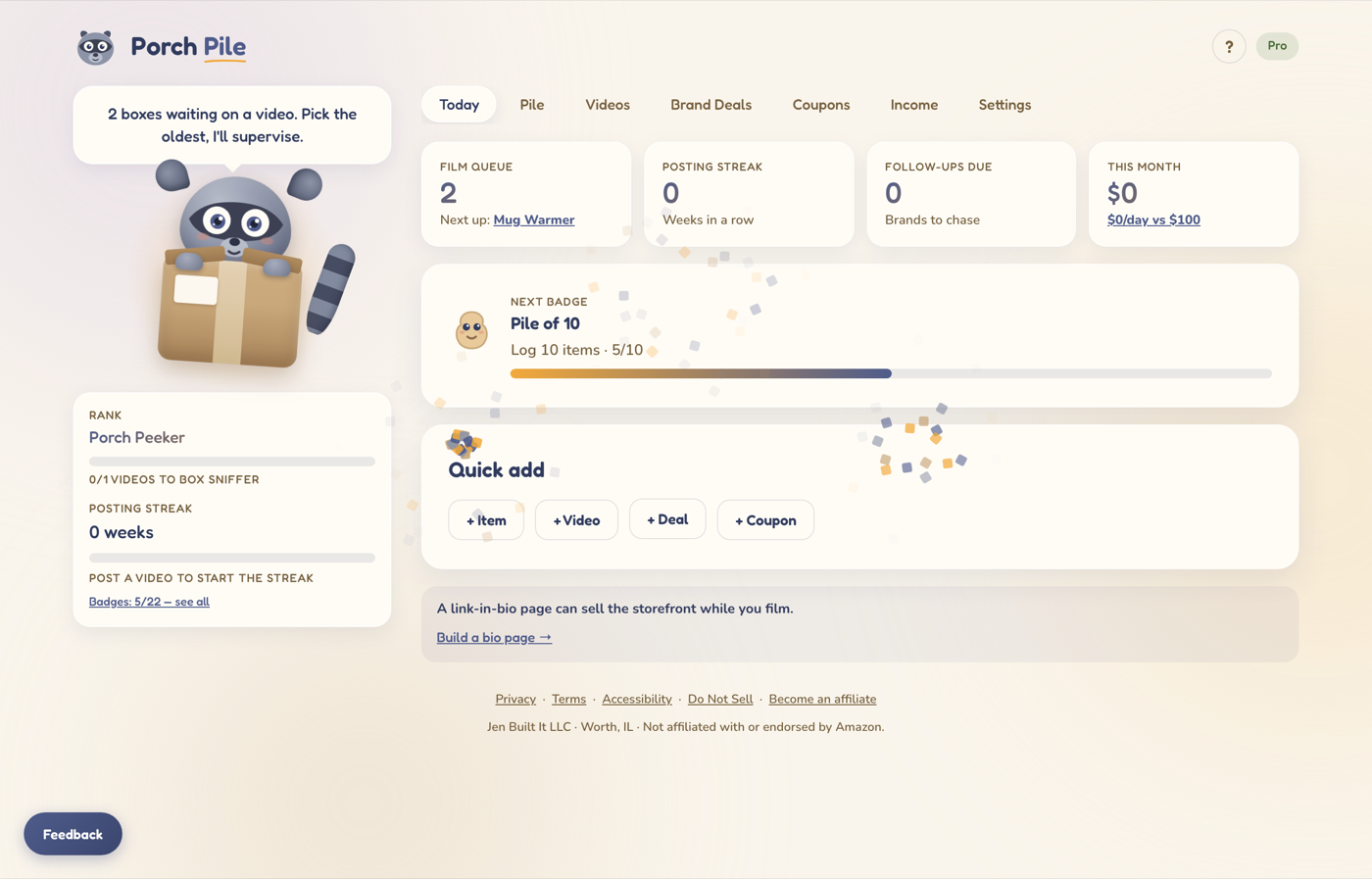
Today is home base. Four tiles: what to film, your streak, who to chase, how the month looks.
Every product has a status
A product you track is called an item. Every item is in exactly one of six spots. The button on each item card moves it one step forward. The six spots, in order:
You never type a status. You just tap the button when real life moves forward. Box showed up? Tap. Video went live? Tap.
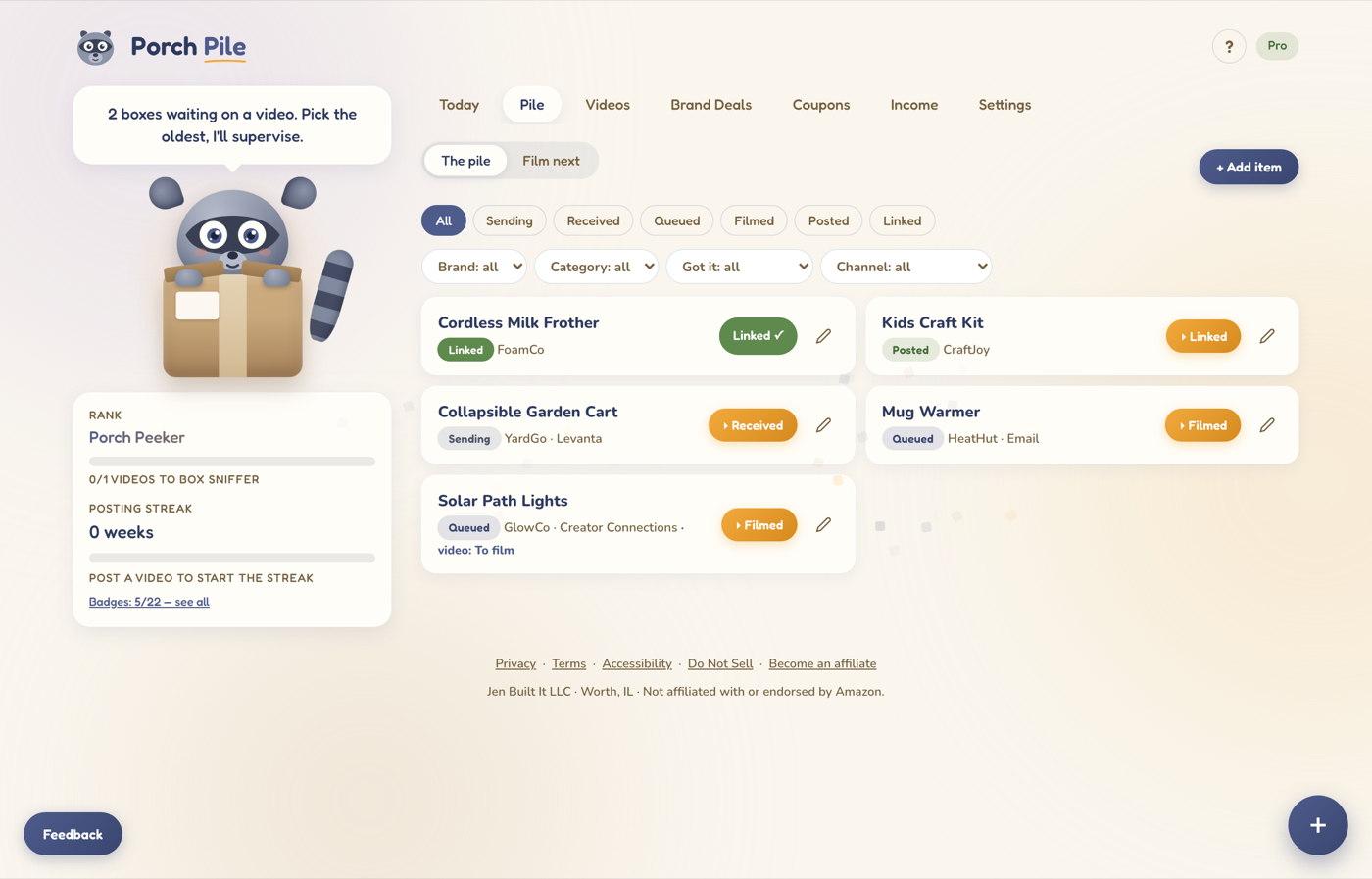
The Pile. Each card shows where the item is and one button to move it forward.
Videos have their own three steps: To film, then In review (you uploaded it and the platform is checking it), then Posted. When a video posts, the items in it move forward too.
What each tab is for
- Today is your starting point. Open it first, every time.
- Pile is every product you track. New items start here. The Film next view inside it lines up what to film, in order.
- Videos is each video you make, from "need to film it" to "it's live".
- Brand Deals is every brand conversation, from first message to paid. Log each message and the app sets a follow-up date so nothing goes cold.
- Coupons holds the codes brands give you. Add the expiration date and you get a warning 14 days before it dies.
- Income is what you made, one row per month.
- Settings has your account, and the spreadsheet import if you're Pro.
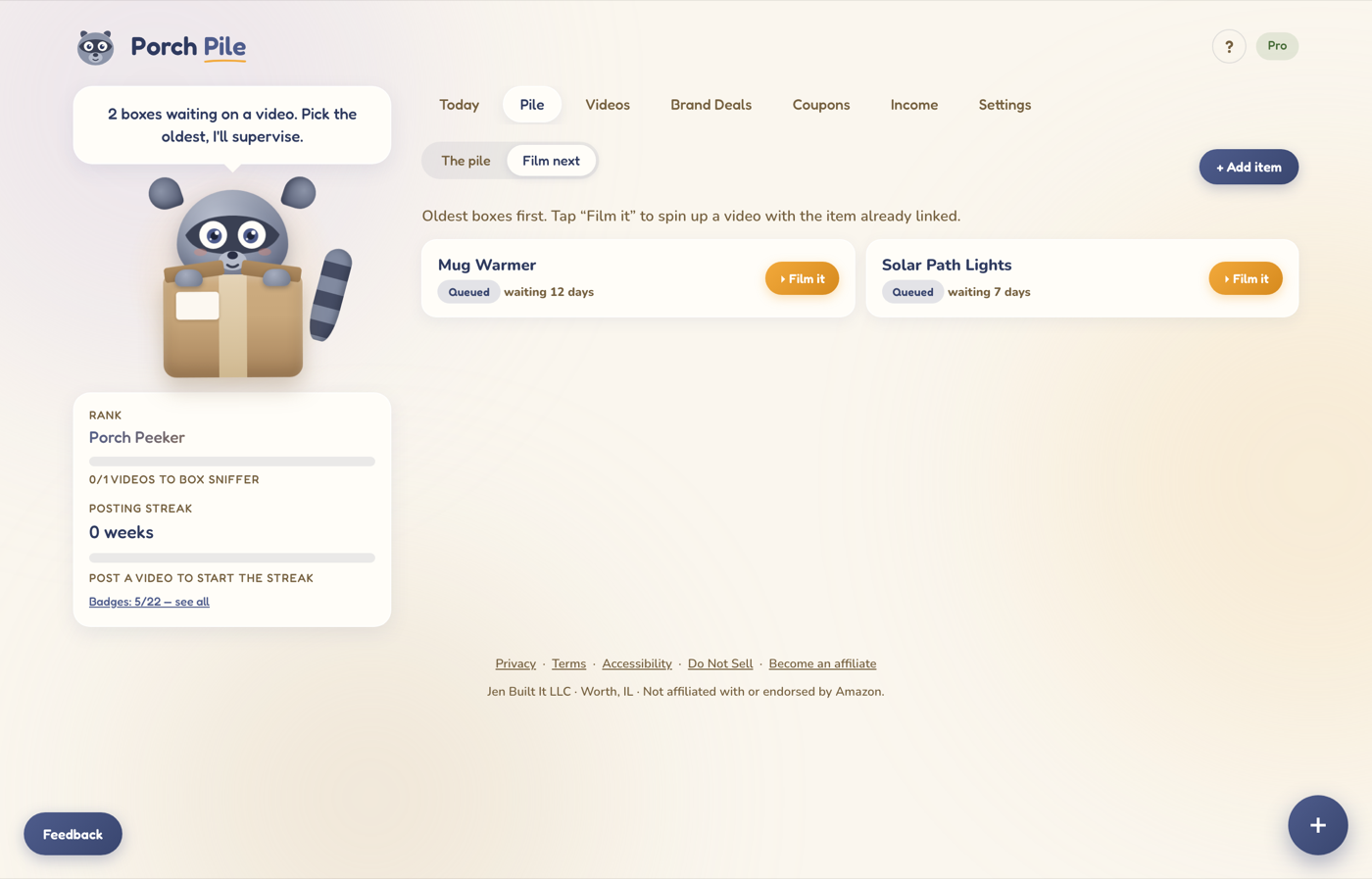
Film next answers the only question that matters at camera time: which one is next?
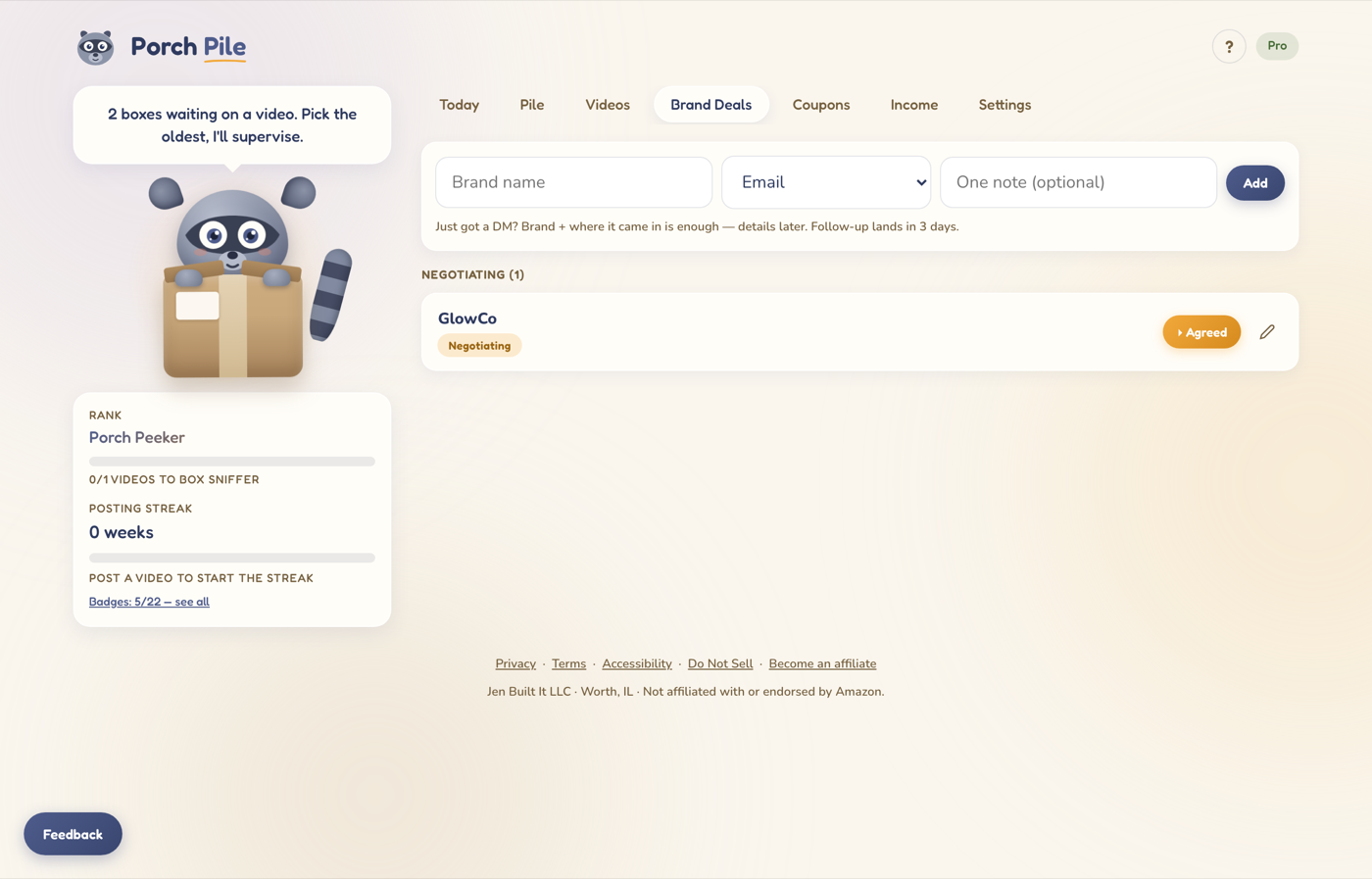
Brand Deals. Type a brand name in the bar the moment they message you, sort it out later.
A normal day
- Open Today.
- Film whatever sits at the top of the film queue.
- When something changes in real life, tap it forward in the app.
That's the whole habit. A couple of minutes a day keeps everything true, and the streak counter keeps score for you.
Your first ten minutes
- Add three items. Pile tab, + Add item, type a name, save. A name is enough. Details can wait.
- Set their real status. On the way? Sending. On your counter? Received.
- Check Today. Your film queue is already forming.
Tracking a lot of products somewhere else already? Read on.
Importing your spreadsheet (Pro)
If your product history lives in Airtable, Google Sheets, Excel or Notion, you don't have to retype it. Export it as a CSV file, then go to Settings, open Advanced, and tap Import a CSV. Four steps:
- Pick your file. It's read right on your device. It never gets uploaded.
- Check the column matches. The app guesses which of your columns is which. Fix anything it got wrong. Only the product name is required.
- Translate your words. If your sheet says things like "Creator Connections" or "Had in House", tell the app what they mean. It pre-fills everything it recognizes.
- Answer one question. Are these already done, waiting to film, or still in the mail? That sets the starting status for every row. Then look at the preview and tap Import.
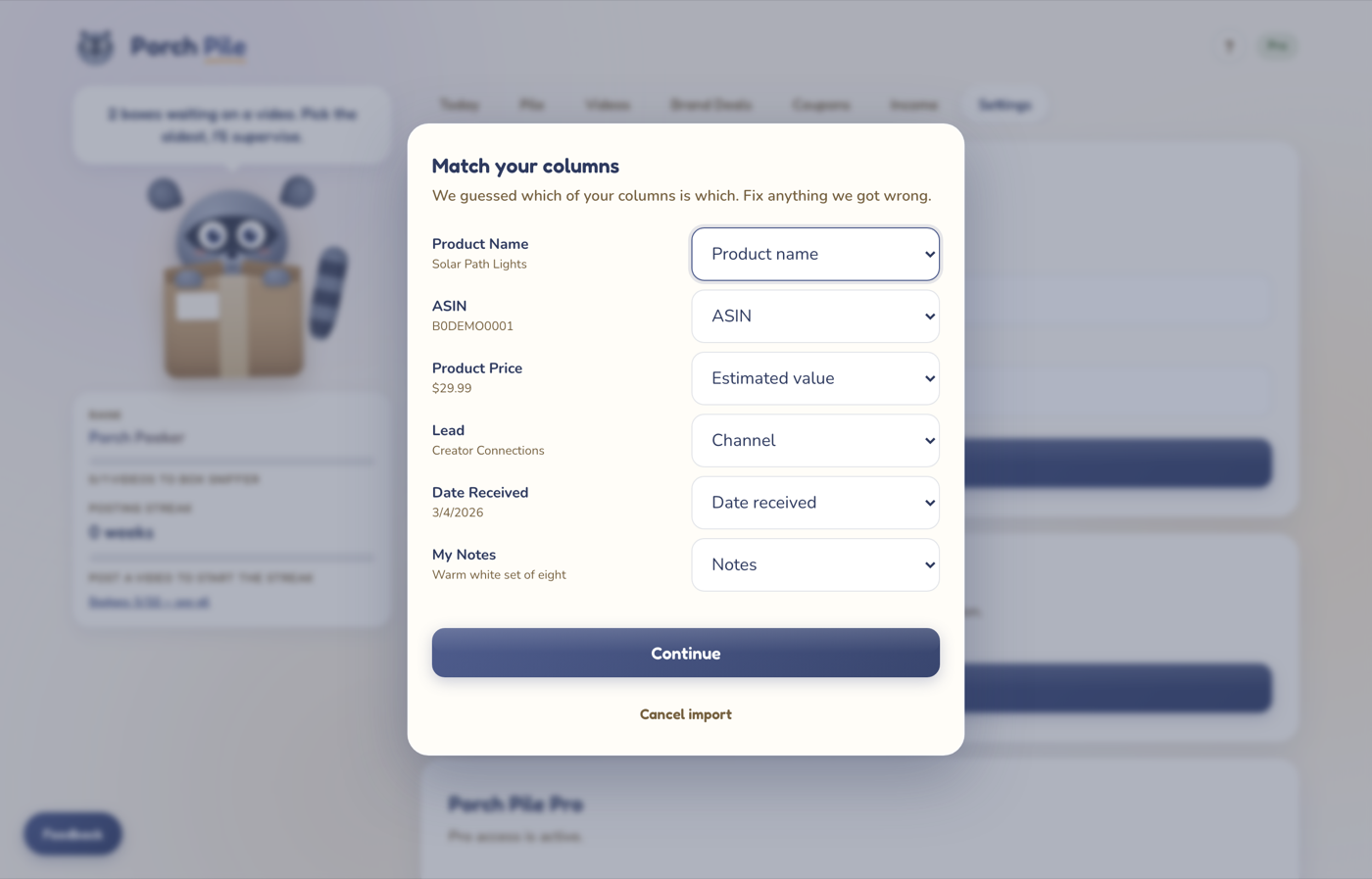
Step two: your columns on the left, what they mean on the right. The guesses are usually right.
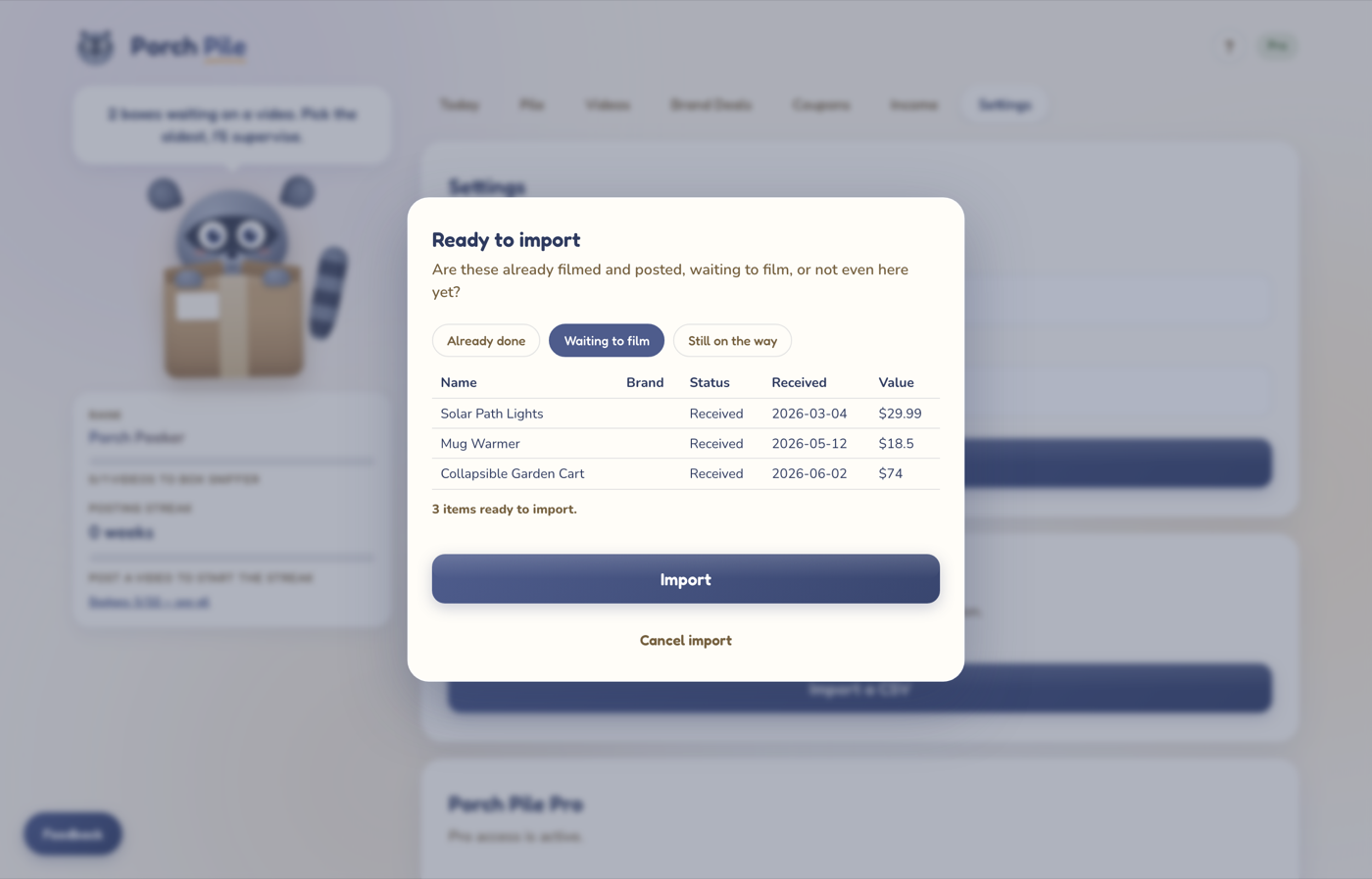
Step four: one question, a preview of exactly what will land, and the Import button.
Quick answers
- Does Porch Pile upload my spreadsheet?
- No. The file is read in your browser. Only the items you approve get saved to your account.
- What if I mess up an import?
- Settings, then Advanced, then Undo. Works for 24 hours. Items you edited since stay put.
- What's free and what's Pro?
- Free holds 30 items, 15 videos, and 3 deals in play, with income for the current and previous month. Pro removes every limit and adds the import.
- Can I see the app tour again?
- Yes. Tap the ? button at the top of the app, then Show me around.
- Where do I ask for help?
- The Feedback button in the bottom corner of the app goes straight to me, Jen. I read every one.